Columns
Within each register, you can move, sort, filter and group your columns to view the information the way you need to see it.
Move Columns
You can move columns by selecting a column header and using drag-and-drop. If there are columns on the register that you don’t use, you can hide and unhide them from view, as needed.
Step by Step — Move Columns
-
In the CBS, click on the Currency column header and drag the column to the left, dropping it to the right of the Description column.
-
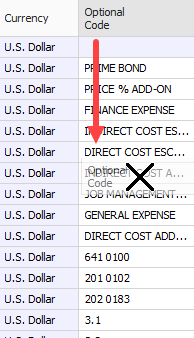
Hide the Optional Code column by dragging the Optional Code column header down until a black X appears, then let go.
-
The Optional Code is now hidden from view
-
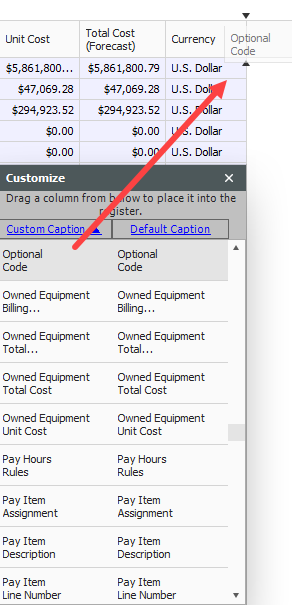
To unhide a column, right click on any column header and select Column Chooser; a Customization window appears, which contains all the hidden columns in that register
-
Find the column you want to unhide and drag-and-drop it to the location where you want it to go.
-
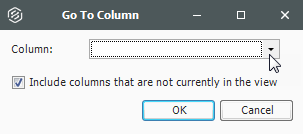
Right click on a column header and select Go To Column.
-
Click on the drop-down menu and select the column you want to unhide.
-
Click OK.
Sort and Filter Columns
You can sort and filter your columns to drill down to specific information.
Step by Step — Sort Columns
You can sort on any column by clicking once on the column header.
-
In the CBS Register, click on the Total Cost (Forecast) column to sort the column in ascending order (e.g., 1 to 10, A to Z).
-
Click the Total Cost (Forecast) column a second time to sort in descending order (e.g.,10 to 1, Z to A).
Use Ctrl-click to unsort a column and reset it to its original state.
Step by Step — Filter Columns
-
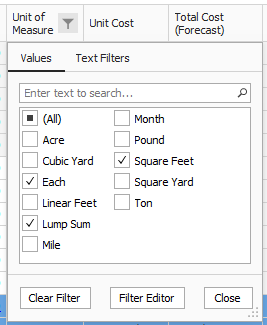
In the CBS, hover over the Unit of Measure column header for the filter icon to appear.
-
Click on the filter icon in the Unit of Measure column to select a filter value.
-
From the filter list, you can select any of the values defined for that column or you can use one of the predefined values (Custom, Blanks, Non blanks).
-
Make your selection, then click Close.
-
To clear the filter, click on the red X at the bottom of the form or click on the filter icon on the header of the column you filtered and select (All), then click OK.
Filter Editor Overview
The Filter Editor displays conditions and groups as a tree branching system.
The Filter Editor grouping feature allows you to increase the amount of And/Or statements that originated from the first selected And statement. When you add a new Group, a new Condition is automatically added to that Group.
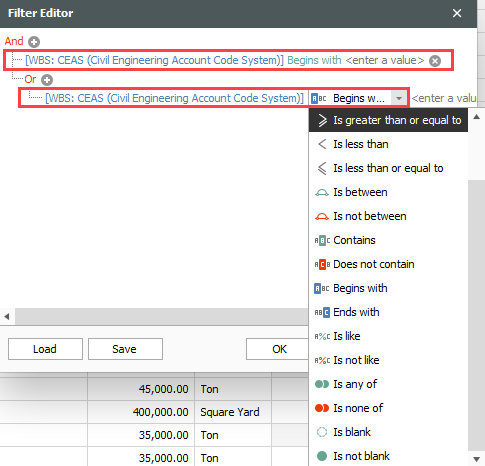
With each additional Condition statement, you will need to select an operator and a value in order for your customized filter to take effect on your chosen column. Many new operators have been added to this version as shown in the screenshot below:
Step by Step — Filter Editor
-
In the CBS, hover over the Unit of Measure column header for the filter icon to appear.
-
Click the filter icon in the Unit of Measure column to select a filter value.
-
Select the Filter Editor button. The Filter Editor data box appears.
- By default, an And statement is created with a Begins with operator and a blank value.
-
Select your preferred operator and then enter in your preferred value.
-
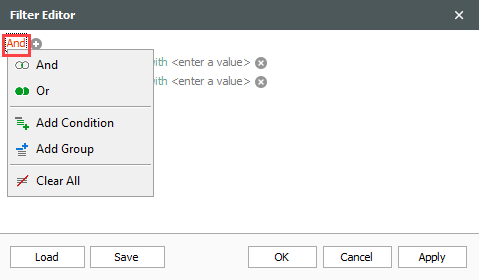
To add additional And/Or statements, select the word And in the top left corner. A drop down appears.
- Choose which And/Or statement to add and then select the preferred operator.
- Enter in your preferred value to complete your additional statement.
- Select the X to delete a single statement.
- Select the And statement in the top left corner to begin clearing all And/Or statements.
- From the drop down, select the option Clear All.
- Once done, select Apply and then click OK.
Group Columns
Sometimes you may want to organize your information into groups. Instead of filtering your information down to one value (e.g., unit of measure = Ton), you can look at your information with a separate group for each value (e.g., a group for Tons, a group for Cubic Feet, etc.).
Step by Step — Group Columns
-
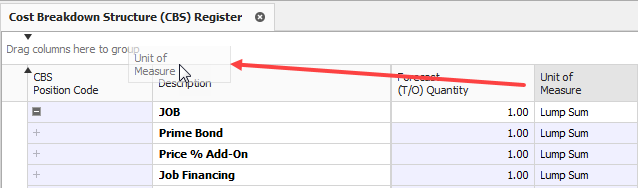
From the CBS register, group the Unit of Measure column by dragging it into the grouping area (where it says “Drag columns here to group”).
-
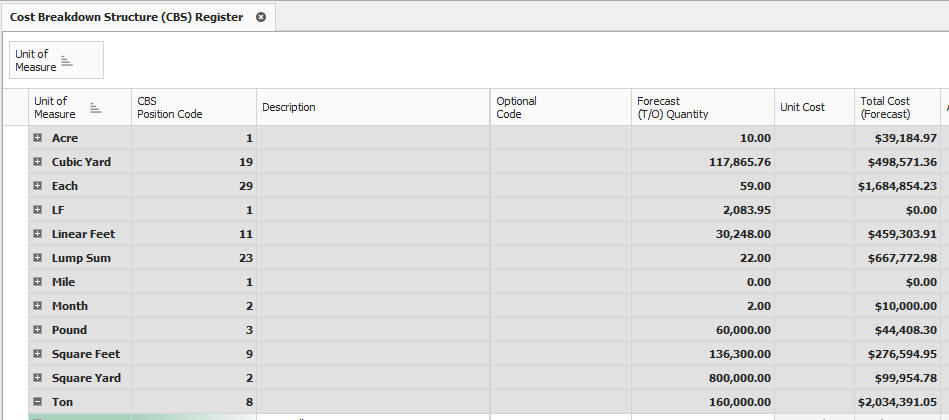
Notice that the cost items in the register are now grouped together by their units of measure, and each group of cost items is subtotalled by costs, hours, quantities, etc.
-
To ungroup, right click in the grouping area and select Clear Grouping
Saved Views
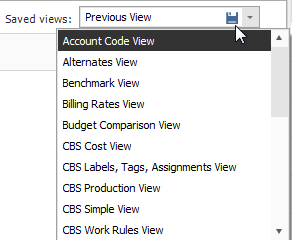
Once you have set up a view the way you like it, you can save the view so you won’t have to configure it again later. InEight Estimate also comes with some pre-built views to help you organize the screen the way you want to see it.
Views are accessed from the Saved Views menu in the top right portion of a register.
The following steps assume you have made changes to your register view and want to save it for future use.
Step by Step — Create a Saved View
-
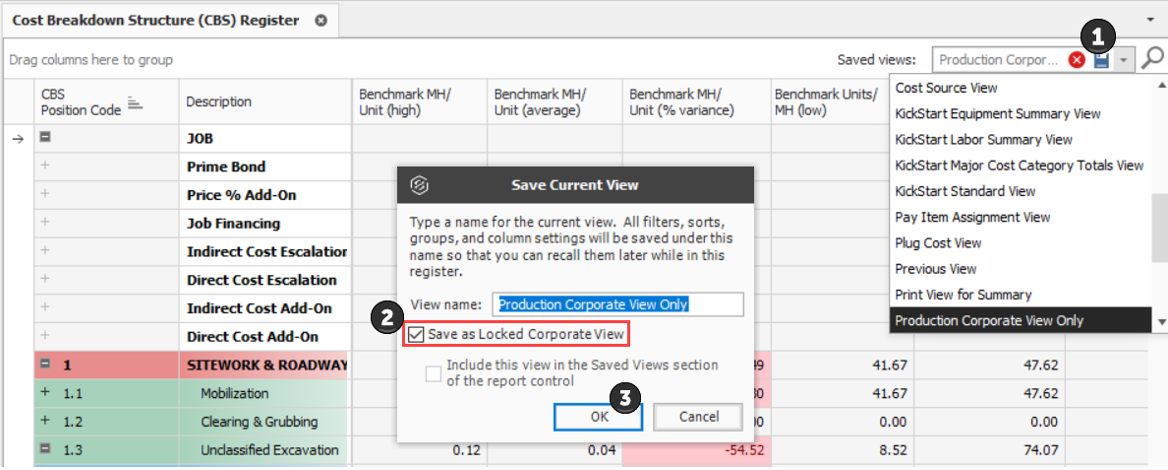
In the CBS register, click on the Saved Views drop-down menu and the Save disc icon appears.
-
Click on the Save disc icon.
-
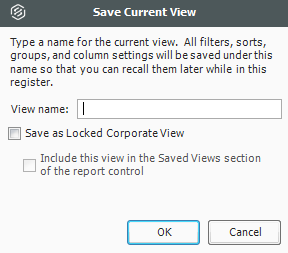
Enter the View Name, then select OK.
Saved views are user-specific; you will only see your own saved views when you are logged in.
Corporate Saved Views
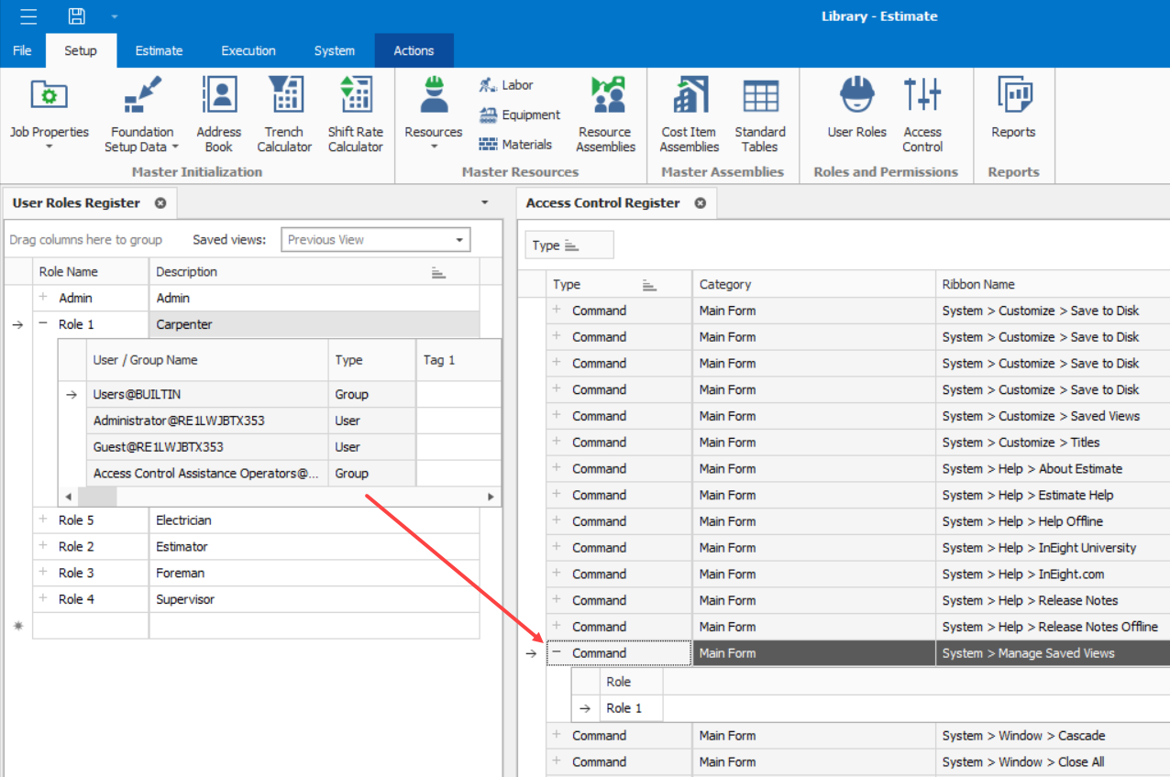
Corporate view access is administered in the Access Control register. Restricting users from creating or deleting corporate views is managed in Estimate’s Library Access Control register. In the User Roles register, you can restrict access by associating selected roles with the command Manage Saved Views in the Access Control register.
In this example, the users associated with Role 1 can manage saved and locked corporate views.
You still must create the view and save it as a locked corporate view prior to managing view restrictions in the Access Control Register.
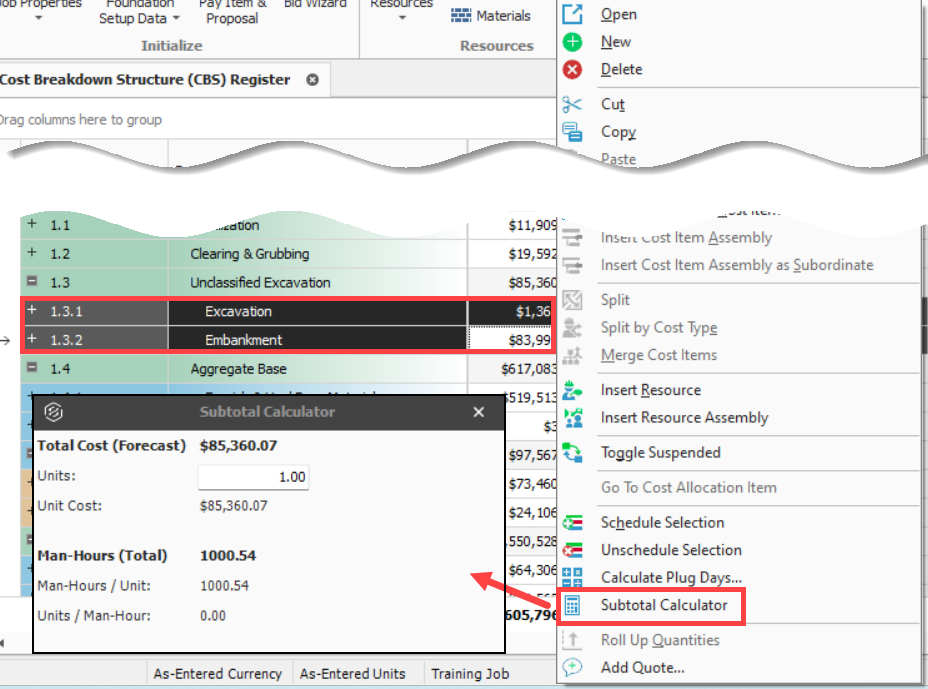
Subtotal Calculator
You can select multiple cost items and use the Subtotal Calculator to summarize and display Unit Cost, Man-Hours/Unit and Units/Man-Hour. Highlight a cost item in the CBS and right click on a Total Cost column (e.g., Total Cost (Forecast), Labor Total Cost, Owned Equipment Total Cost, etc.). Select Subtotal Calculator from the right click menu, and enter the number of units to use in your calculation.